Console
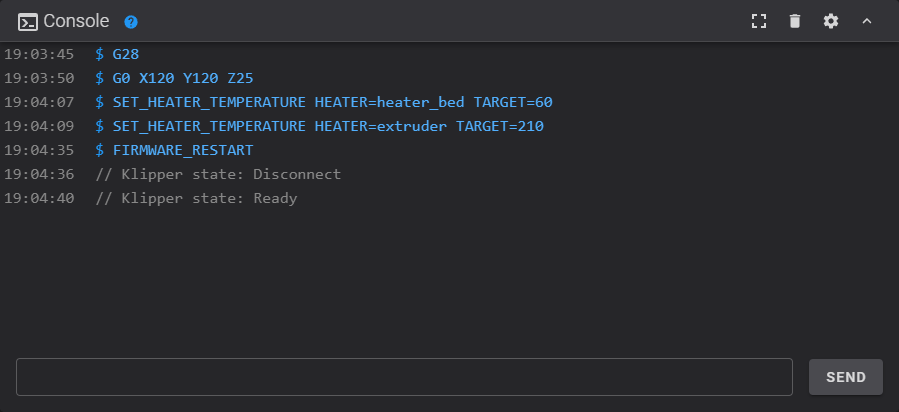
Fluidd's console lets you send G-code commands to Klipper and view responses in real time. A compact console card is available on the dashboard, and a dedicated fullscreen console page is accessible from the navigation menu.
Toolbar
The console toolbar provides quick access to common actions:
- Scroll to latest — appears when auto-scroll is paused (you have scrolled away from the newest output); jumps back to the most recent message
- Flip layout — toggles the input position between top and bottom
- Filter — opens a menu to hide temperature waits and toggle your custom output filters
- Clear — clears the console output
- Search — filters the output and highlights matches (see below)
Search
Type in the toolbar search box to filter the console output to matching lines. Matching text is highlighted so it is easy to spot in long output.
History
The command input is multi-line. Use Up and Down to scroll through previously entered commands — history navigation triggers only when the cursor is on the first or last line of the input, so it does not interfere with editing multi-line commands. History is preserved across sessions.
Autocomplete
Start typing a command and press Tab to autocomplete. If multiple matches exist, they are printed to the console output.
Clickable commands
Click any G-code command name that appears in the console output to copy it into the input field. Only recognized Klipper commands are clickable — these are the same commands listed by help.
Command reference
Type help and press Enter to list all available Klipper commands, including built-in G-code commands and any extended commands provided by configured modules and macros. For detailed documentation of each command, see the Klipper G-Codes reference.
Output filters
Configure custom filters in Console Settings to hide unwanted messages. Each filter can be toggled on or off from the toolbar Filter menu without removing it:
| Filter | Description |
|---|---|
contains | Hides messages containing the specified string (case insensitive) |
starts with | Hides messages starting with the given string (case insensitive) |
expression | Hides messages matching a regular expression (case sensitive) |
Layout
Use the Flip layout toolbar button to move the command input between the top and bottom of the console. Choose whichever feels more natural for your workflow; the choice is remembered across sessions.