Multiple Printers
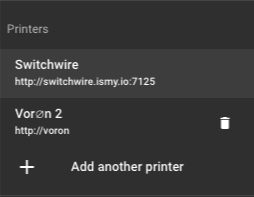
Fluidd can connect to and switch between multiple printers from a single browser tab. Each printer runs its own Moonraker instance and Fluidd stores connection details locally.
Adding a printer
- Open the right-side drawer from the top bar.
- Click Add Printer at the bottom of the printer list.
- Enter the Moonraker URL (e.g.,
http://printer.localorhttp://192.168.1.50:7125). - Fluidd verifies the connection automatically. If successful, the save button becomes available.
If the connection fails with a CORS error, you need to add Fluidd's origin to Moonraker's cors_domains. See the Moonraker configuration docs.
Switching printers
Click any printer in the drawer list to switch. Fluidd fully reinitializes — loading the new printer's settings, state, and authentication from its Moonraker instance.
Bookmarkable URLs
Each printer selection can be bookmarked. Fluidd appends a ?printer= query parameter to the URL — an automatically generated identifier derived from the printer's API URL. Opening that URL in the same browser will select the matching saved printer automatically.
Printer names
Each printer's display name is set in Settings — General — Printer Name. The name is stored in that printer's Moonraker database, so it persists across browsers.
Removing a printer
In the printer list, click the delete icon next to any inactive printer to remove it. The active printer cannot be removed.
Network requirements
- If Fluidd is served from the same host as Moonraker (e.g., a KIAUH install), no extra configuration is needed —
trusted_clientscovers local connections. - If Fluidd is served from a different host (e.g.,
app.fluidd.xyzor a separate server), Moonraker must list Fluidd's origin incors_domains. See the configuration example.
Each printer connection runs over a single WebSocket to Moonraker for both initialization and live data. The WebSocket URL is derived automatically from the Moonraker URL you enter.
Authentication
Auth tokens are stored independently per printer. Switching printers also switches authentication state, so each printer can have its own user accounts and login requirements.