Customize
Fluidd allows you to adjust the layout of your dashboard, set a theme color, and control which components are visible.
Application Layout
Fluidd's dashboard uses a multi-column layout. On desktop, cards are arranged across left and right columns. On mobile, they collapse into a single column.
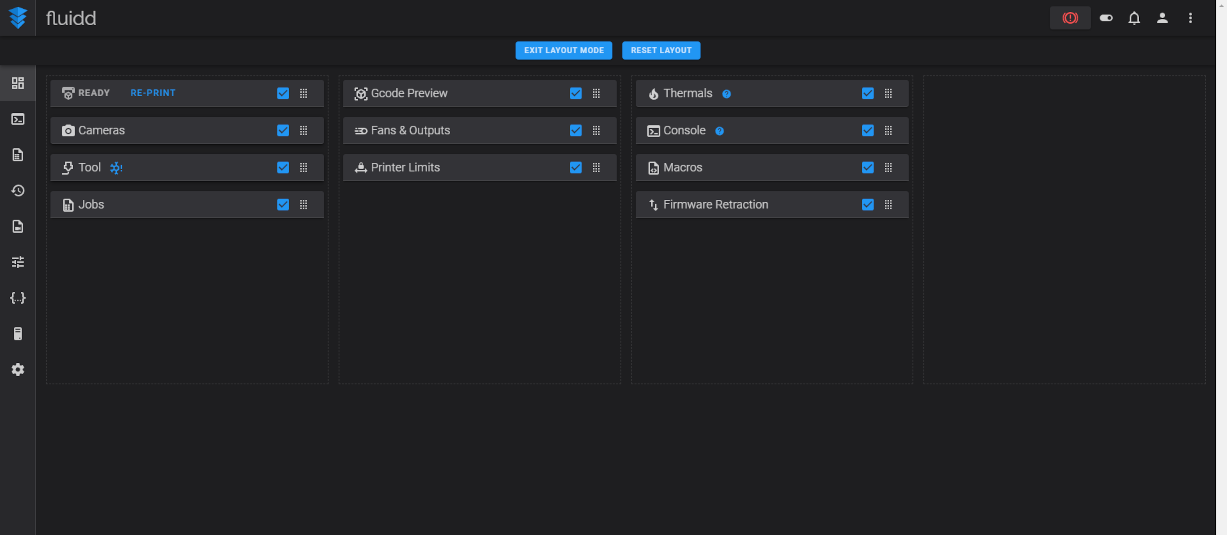
To adjust the layout, open the side menu and click Adjust Layout:
- Drag cards between columns or reorder them within a column using the drag handles.
- Enable or disable individual cards using the checkboxes — disabled cards are hidden from the dashboard.
- Click Exit Layout when you are done, or Reset Layout to restore the default arrangement.
Themes
Theme Presets
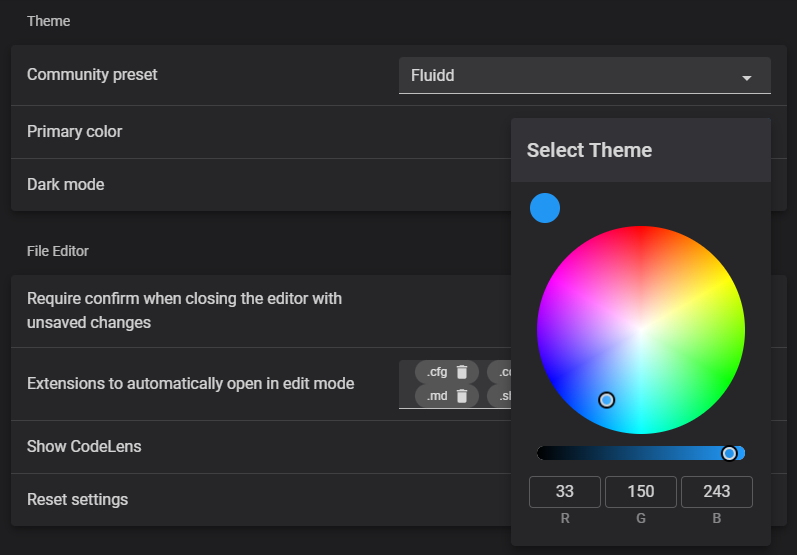
Fluidd lets you choose a community preset, apply a color of your choosing — along with either a dark or light theme.
Community presets are themed around popular 3D printing brands and communities. If you'd like to see your logo supported here, let us know!
You can also set any custom primary color and independently toggle between dark and light mode without using a preset.
Custom Themes
Fluidd supports custom stylesheets, background images, and logos. All custom
theming is configured through a .fluidd-theme folder within your printer's
configuration directory.
Custom Background
To use a custom background, upload your background.png file into the
above-mentioned .fluidd-theme folder.
Currently, the following file extensions are supported:
.jpg.jpeg.png.gif
Custom Logo
To replace the Fluidd logo in the sidebar, upload a logo.svg or logo.png
file to the .fluidd-theme folder in your configuration directory. The logo
will appear in the application bar after reloading Fluidd.
Custom Styling
To apply custom CSS, create a custom.css file and upload it to the
.fluidd-theme directory. After reloading Fluidd the changes should become
visible.
Custom CSS
Custom CSS is applied globally. Fluidd uses Vuetify 2 CSS classes. Use your browser's developer tools (F12) to inspect element classes before writing custom selectors.
Hiding Components
Fluidd allows you to hide macros, output pins, fans and sensors by prefixing
them with an underscore (_).
By doing this — you're removing them from Fluidd. This can be handy in situations where you have a large quantity of macros, or whereby you have an output pin you may have no need to control in UI.
Some examples;
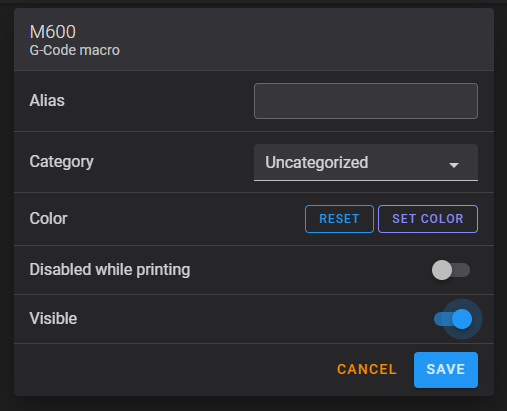
Macros can also be hidden directly from the Fluidd settings by toggling their visibility, in order to not change their name. For full macro management options including categories and colors, see the Macros page.
Note that the underscore prefix controls macro and pin/sensor visibility only. Dashboard widget cards (temperature, toolhead, etc.) are shown or hidden via the Layout settings instead.