Authorization
Fluidd supports JWT authorization through Moonraker's authentication endpoints.
API Keys
Moonraker stores API keys in its internal database. To retrieve your API key:
- From a trusted client, navigate to
http://{moonraker-host}/access/api_key - Or run
~/moonraker/scripts/fetch-apikey.shon the host machine
Setup
If authorization is not yet enabled:
- Open Fluidd and go to Settings → Authorization
- Click Add User and create your first user account with a username and password
- Once a user exists, login is required when
force_logins: trueis set inmoonraker.conf, or when the connecting client is not intrusted_clients. See Understanding forced logins for details. - By default, trusted clients (LAN IPs) bypass the login screen while
force_loginsremainsfalse— adjust these settings if you want local connections to always require logging in.
If you're locked out, see the Lost Password section.
Understanding forced logins
The force_logins setting controls how Moonraker handles authentication:
force_logins | Users defined? | Behavior |
|---|---|---|
false | — | Relies on trusted_clients first |
true | No | Falls back to trusted_clients |
true | Yes | Ignores trusted_clients, requires authentication |
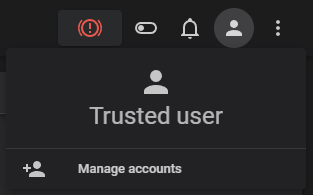
A fresh installation has your client trusted by default. You can confirm this by checking your currently authenticated user.
Lost Password
Lost your only password? You need to revert to a trusted setup. You can do this by editing your moonraker.conf and turning force_logins to false.
LDAP Configuration
Fluidd supports LDAP authentication through Moonraker's [ldap] component, enabling centralized login with Active Directory or any LDAP-compatible server. For the full configuration reference, see the Moonraker LDAP documentation.
Two Fluidd-specific steps after configuring [ldap] in Moonraker:
- Remove
trusted_clients:from[authorization]to require authentication from all clients, including local ones. - Set
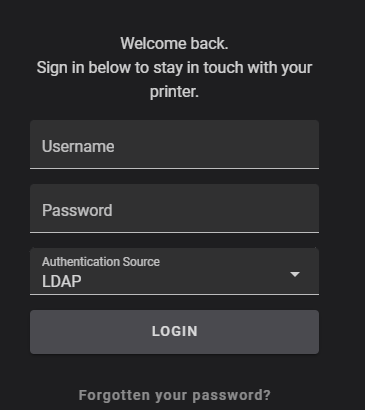
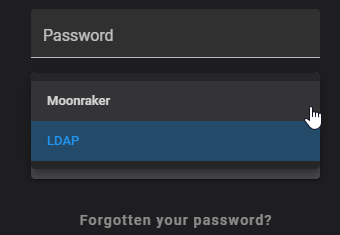
default_source: ldapin[authorization]to make LDAP the default login interface.
Secrets file location
Store the secrets file in a separate directory from moonraker.conf (e.g. ~/klipper_secure/moonraker_secure.json) — Moonraker enforces this as a security requirement.
Common LDAP Issues
- "LDAP connection refused" — verify the LDAP server address and port (default: 389 for LDAP, 636 for LDAPS)
- "Invalid credentials" — check the bind DN and password in
moonraker.conf - User can log in but has no access — ensure the user is in the correct LDAP group (if
group_dnis configured) - SSL/TLS errors — for LDAPS, ensure the certificate is trusted on the Moonraker host