Thermals
Fluidd displays real-time temperature data for all heaters, fans, and sensors configured in Klipper.
Chart
Fluidd's thermals chart shows temperatures and power applied to heaters and fans in real time.
- Click a heater, sensor, or fan name to toggle its visibility.
- Click the power value to toggle power graph visibility.
- Hover over a heater, sensor, or fan row to highlight its series in the chart.
- Hold Shift and scroll the mouse wheel over the chart to zoom.
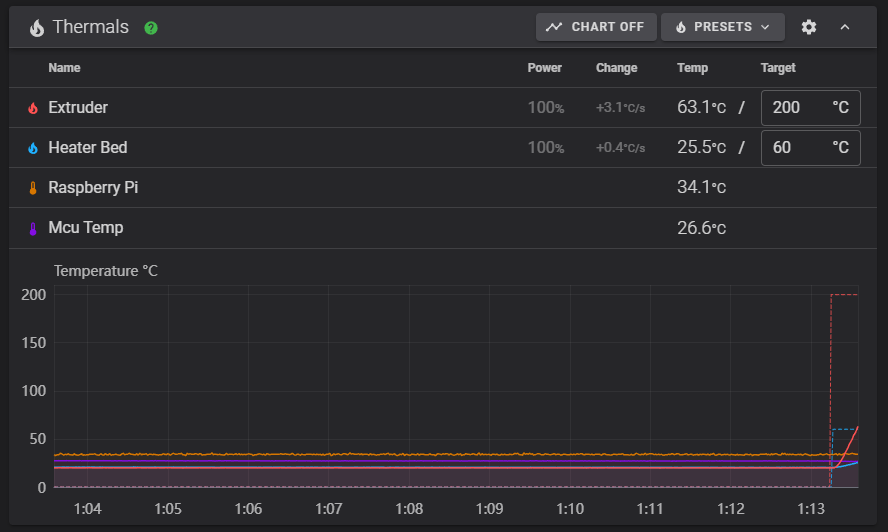
Chart smoothing
Noisy temperature readings can be smoothed with a trailing moving average. Set it in Settings — General — Thermal chart smoothing, choosing None (the default) or a window of 1, 3, 5, 10, 15, or 30 seconds.
Smoothing only affects temperature traces — target temperatures, heater power, and fan speed are always plotted exactly. It is a display-only setting: nothing stored by Moonraker changes, and switching back to None restores the raw trace immediately.
Sensor colors
Each heater, fan, and sensor row displays a colored icon. Click it to open a color picker and set a custom color for that sensor. The color is reflected immediately in both the list and the chart.
To revert to the automatically assigned palette color, open the picker and click Reset to default.
Colors are saved per sensor in Moonraker's database and restored on the next page load.
Presets
Fluidd supports custom thermal presets — saved temperature profiles you can apply with one click. Configure your presets in the UI Settings page.
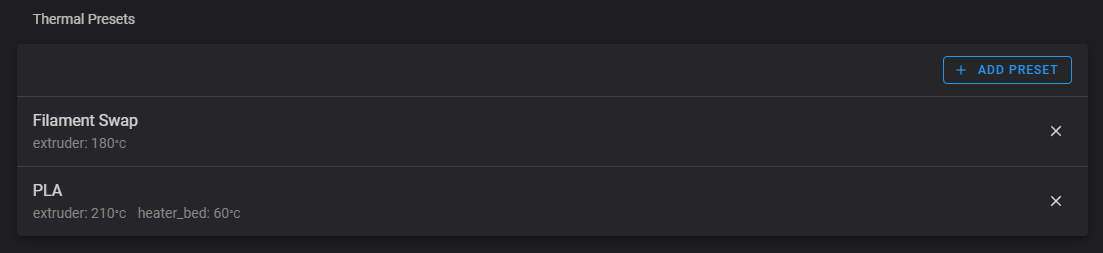
Turning heaters off
Set a temperature to 0 in a preset to turn that heater off.
Presets can also store fan speeds. Add a fan speed to a preset for materials that need active cooling (e.g., PLA) or none at all (e.g., ABS).
Sensors
Fluidd displays any temperature sensor that Klipper exposes. Below are the most common built-in sensor types.
For the Raspberry Pi (or other host) CPU temperature. See the Klipper temperature_host reference.
For ATSAM, ATAMD and STM32 microcontrollers. See the Klipper temperature_mcu reference.
Klipper supports a wide range of I2C temperature, humidity, and pressure sensors — including AHT10/20/30, BME280/680, BMP180/388, SHT3X, HTU21D, LM75, and more. Fluidd displays these automatically when configured. For setup details, refer to the Klipper temperature sensor documentation.
If you are running Kalico with MPC (Model Predictive Control) configured for your extruder, Fluidd shows an MPC_CALIBRATE button in the thermals card.
Troubleshooting
Sensor not appearing in the chart or on the dashboard
- Verify the sensor is configured in
printer.cfgand that Klipper restarted without errors after the change. - Check that the sensor type string is spelled correctly and is supported by your version of Klipper — see the Klipper temperature sensor documentation.
- Host and MCU temperature sensors require the correct
sensor_typevalue (temperature_hostortemperature_mcu). See the examples in the Sensors section above.
Temperature history is short or missing
Moonraker stores a rolling temperature history buffer. If the chart shows only a few seconds of history, check the temperature_store_size value in the [data_store] section of your moonraker.conf. The default is 1200 samples (20 minutes at one sample per second). See the Moonraker data_store documentation for details.