Multi-Material
Fluidd supports multi-extruder setups and integrates with Spoolman for filament spool tracking.
Multiple Extruders
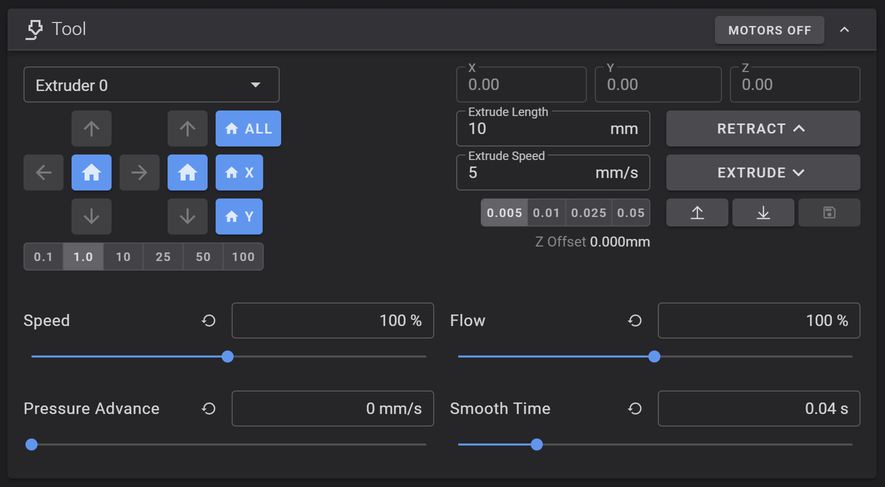
Fluidd supports single extruder, multiple extruder, and multiple extruder stepper configurations. Pressure Advance values can be set for all configurations.
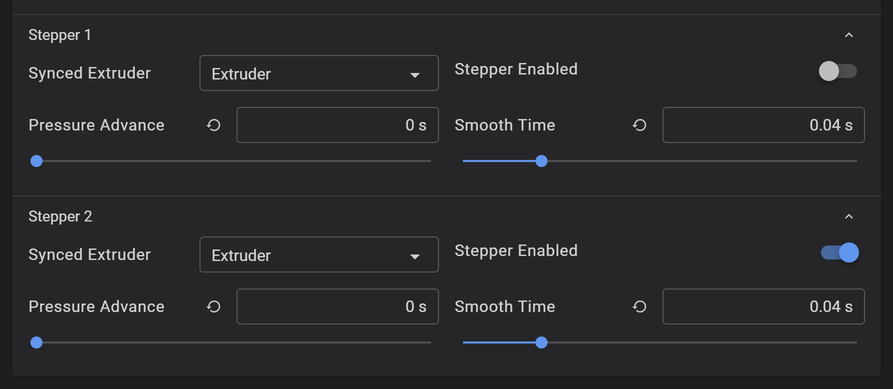
For multiple extruder stepper setups, Fluidd shows a section for each stepper where you can enable or disable it, associate it with an extruder, and set Pressure Advance values.
Spool Management (Spoolman)
Fluidd integrates with Spoolman for filament spool tracking.
Live updates
Fluidd connects to Spoolman in two different ways: through Moonraker, for loading spool data, and directly from your browser, for live updates (spool weight, filament, and vendor changes). Only the direct browser connection is subject to your browser's cross-origin rules.
Spoolman 0.26 and newer reject that direct connection unless Fluidd's origin is explicitly allowed, which breaks live updates while everything else (spool selection, sanity checks) keeps working normally. If your spool weight stops updating during a print after upgrading Spoolman, add the SPOOLMAN_CORS_ORIGIN environment variable to your Spoolman host and restart it:
Each entry is the scheme, host, and port shown in your browser's address bar when you access Fluidd (no path), separated by commas if you use more than one address.
Avoid the wildcard
SPOOLMAN_CORS_ORIGIN=* allows every origin and turns off Spoolman's origin checks entirely. Only use it on a trusted network.
See the .env.example file in the Spoolman repository for more examples.
Print start
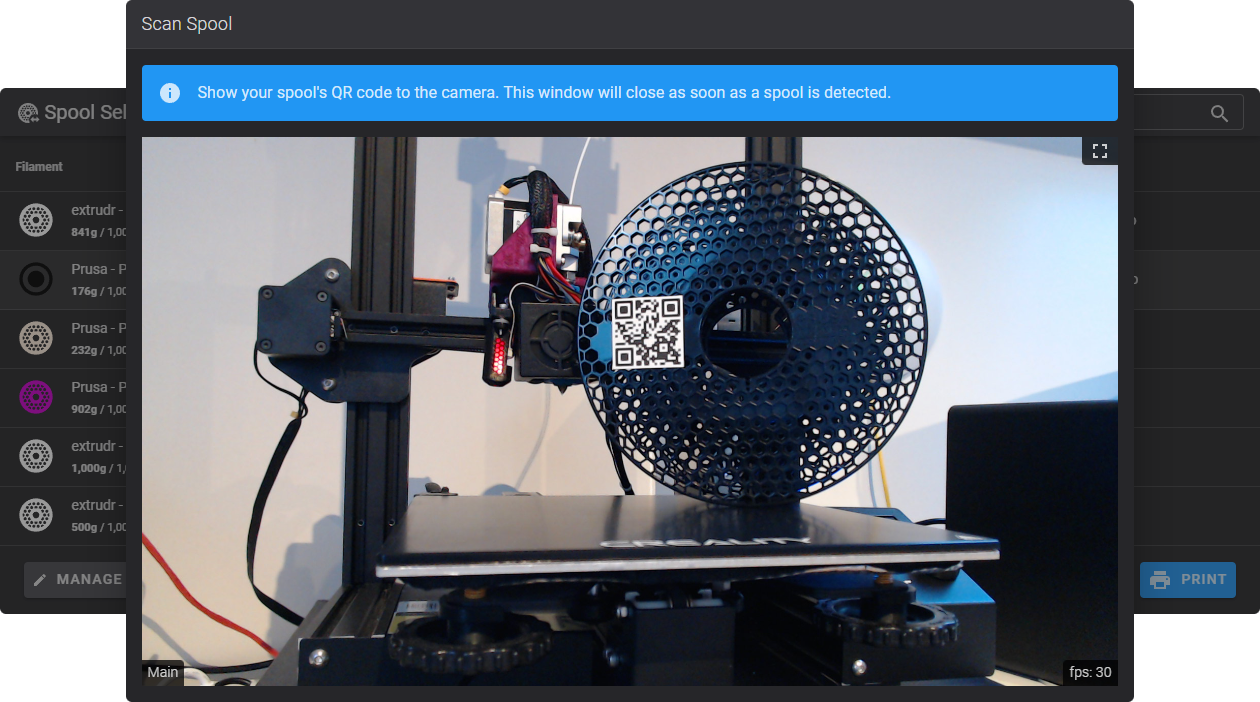
On print start, Fluidd shows a modal asking you to select a spool. You can pick one from the list or scan an associated QR code using an attached webcam. This modal can be disabled in Fluidd settings.
Dashboard card
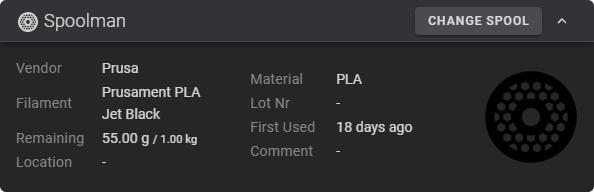
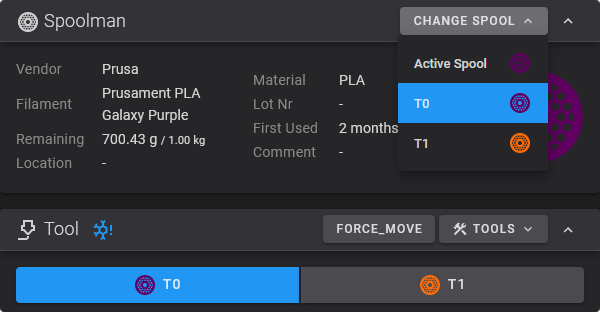
The currently selected spool and its metadata are shown in the Spoolman dashboard card. Use the "Change Spool" button to switch spools mid-print.
Sanity checks
When starting a print or changing spools, Fluidd automatically checks:
- A spool is selected.
- The spool has enough filament to finish the job.
- The spool's filament type matches the one selected in the slicer.
Toolchanger support
For toolchange macros to appear in the "Change Spool" dropdown, add a spool_id variable to your gcode_macro with a default value of None, and call SET_ACTIVE_SPOOL in your toolchange macro:
[gcode_macro T0]
variable_spool_id: None
gcode:
  ...
  SET_ACTIVE_SPOOL ID={ printer['gcode_macro T0'].spool_id }
  ...
Remembering spools across restarts
If Fluidd detects a [save_variables] section in your configuration, it will automatically save the selected spool on each change. Use this macro to restore the selection after a restart:
[delayed_gcode RESTORE_SELECTED_SPOOLS]
initial_duration: 0.1
gcode:
  {% set svv = printer.save_variables.variables %}
  {% for object in printer %}
    {% if object.startswith('gcode_macro ') and printer[object].spool_id is defined %}
      {% set macro = object.replace('gcode_macro ', '') %}
      {% set var = (macro + '__SPOOL_ID')|lower %}
      {% if svv[var] is defined %}
        SET_GCODE_VARIABLE MACRO={macro} VARIABLE=spool_id VALUE={svv[var]}
      {% endif %}
    {% endif %}
  {% endfor %}