Cameras
Fluidd offers robust support for displaying camera streams, providing users with real-time monitoring capabilities for their 3D printing projects.
The current supported types are:
| Type | Description |
|---|---|
| MJPEG Stream | Traditional mjpegstream/ustreamer service. Pushes images at the configured resolution and FPS. Requires substantial bandwidth. |
| MJPEG Adaptive | Pulls images from the mjpegstream/ustreamer snapshot URL at a target FPS. More reliable on unstable connections. |
| UV4L-MJPEG Stream | Similar to MJPEG Stream but with lower browser impact — no worker thread, no FPS indication. |
| HLS Stream | Loads an HLS video stream via HLS.js. Requires a modern browser with MediaSource Extensions. |
| WebRTC (camera-streamer) | Highly bandwidth-efficient stream. Currently only available on Raspberry devices. |
| WebRTC (go2rtc) | Loads a WebRTC stream from go2rtc. |
| WebRTC (MediaMTX) | Loads a WebRTC stream from MediaMTX. |
| IP Camera | Experimental — replaces the <img> tag with a <video> tag. Use only if your URL supports native HTML5 video. |
| HTTP Page | Loads a website in place of the camera feed. Use for embedding video feeds not supported by the other methods. |
Choosing a camera type
Not sure which type to use? Here's a quick guide:
- MJPEG Stream — the simplest and most widely compatible option. Works with virtually any streamer. Uses more bandwidth than WebRTC, so it may struggle on slow Wi-Fi connections.
- MJPEG Adaptive — same source as MJPEG Stream but pulls snapshots at a target frame rate instead of a continuous stream. Better for unstable or low-bandwidth connections.
- WebRTC (camera-streamer) — the most bandwidth-efficient option. Leverages hardware video encoding on Raspberry Pi devices. Best choice if you are running on a Pi and your streamer supports it.
- WebRTC (go2rtc) — low-bandwidth WebRTC streaming that works on any hardware, not just Raspberry Pi. A good alternative when camera-streamer is not available.
- WebRTC (MediaMTX) — similar to go2rtc. Useful if you already run MediaMTX for other purposes.
- HLS Stream — delivers high-resolution video with moderate latency. Suitable for high-quality monitoring where a few seconds of delay is acceptable.
- IP Camera / HTTP Page — use these only for devices that provide their own video feed URL or web interface.
Camera settings
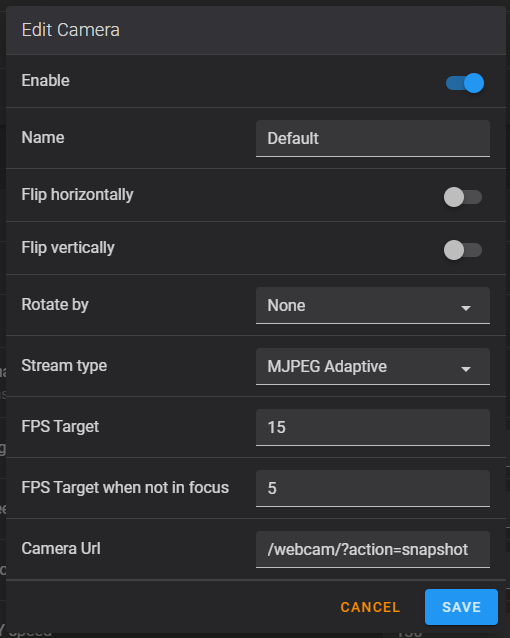
Visit the UI Settings page to define and configure your cameras. Each camera can be configured individually with:
- Aspect ratio — set the display ratio to match your camera's output.
- Rotation and flip — rotate or mirror the video feed to match your camera's physical orientation.
- Fullscreen view — click the expand icon on the camera card to view the feed in fullscreen. You can also access a dedicated fullscreen camera page from the navigation menu.
Camera streamers
You will need a camera streaming service running alongside Klipper to serve the video feed. Fluidd does not capture video itself — it only displays streams provided by external services.
Crowsnest
Crowsnest is the recommended camera streamer for Klipper setups. It supports a wide range of USB and CSI cameras and integrates with Fluidd out of the box. See the Crowsnest documentation for installation and configuration.
Alternatives
- go2rtc — lightweight WebRTC server supporting many camera sources. Works on any hardware.
- MediaMTX — real-time media server supporting RTSP, RTMP, HLS, WebRTC, and more.
- camera-streamer — optimized for Raspberry Pi hardware video encoding.
Refer to each project's documentation for setup instructions.
Troubleshooting
Camera feed not loading
- Verify your camera streamer is running. Try opening the stream URL directly in a browser tab — if the page does not load, the streamer is not reachable.
- Check that the URL in Fluidd's camera settings matches the streamer's configured address and port.
- If using MJPEG with Crowsnest, confirm Crowsnest is active by checking the service status on the System page.
High latency or choppy stream
- Switch to a WebRTC type (go2rtc or camera-streamer) for the lowest latency — MJPEG streams can be significantly slower, especially over Wi-Fi.
- Reduce stream resolution or frame rate in your streamer configuration.
- If on Wi-Fi, try a wired Ethernet connection — MJPEG streams can saturate a wireless link at higher resolutions.
Feed shows but rotation is wrong
Open Settings — Cameras, select your camera, and adjust the Rotation and Flip options to match your camera's physical orientation.